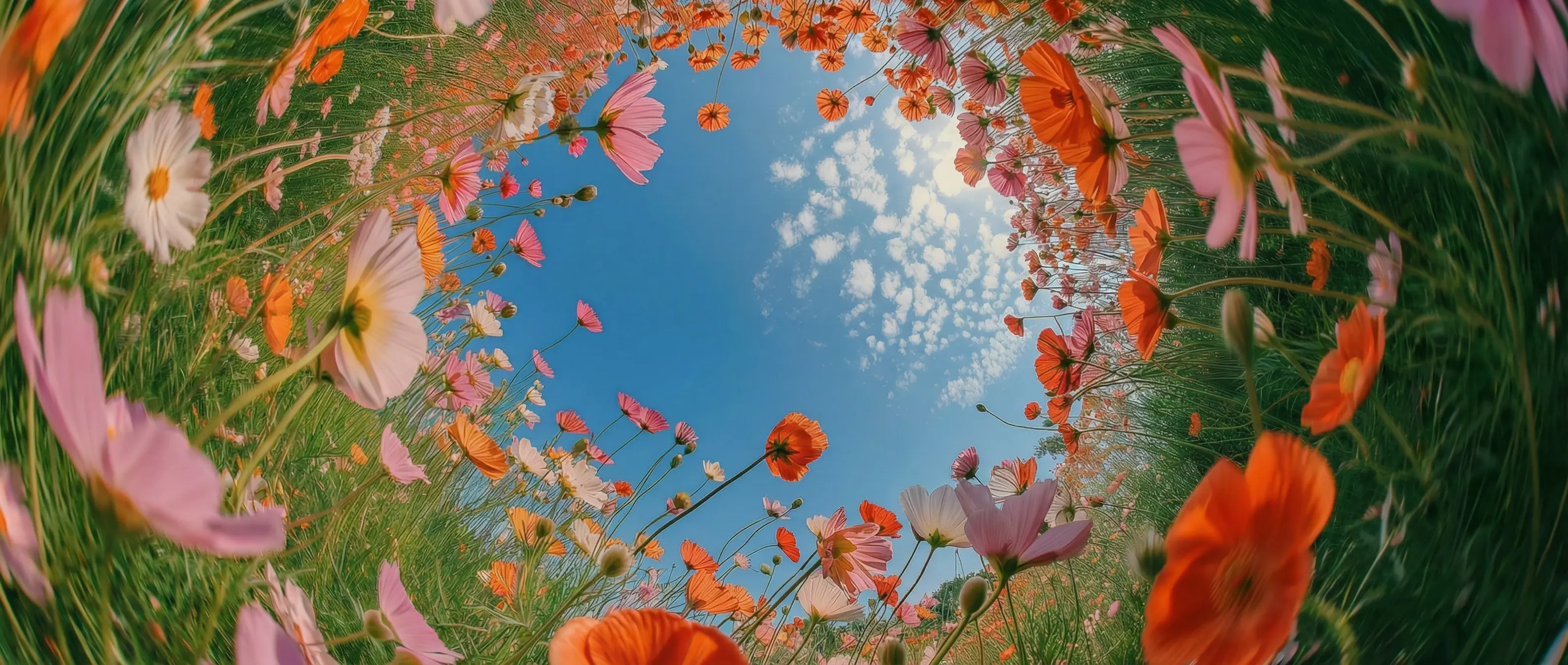
Native audio generation in DaVinci
In DaVinci, Kling 2.6 Pro comes with built-in audio, including sound effects, ambient layers, and character dialogue, all automatically synchronized with your visuals.
DaVinci brings together video models from different AI providers — Kling 2.6 among them. Create text-to-video and image-to-video with fluid motion, cinematic output, strong prompt accuracy, and native audio.
In DaVinci, Kling 2.6 Pro comes with built-in audio, including sound effects, ambient layers, and character dialogue, all automatically synchronized with your visuals.
Control pacing, camera movement, and emotional tone with accuracy inside DaVinci. The model closely follows your direction, turning complex prompts into polished, professional video output.
Lighting, motion, and depth respond like the real world through DaVinci. Scenes feel cleaner and more dynamic, with smooth transitions and natural physics that give every shot purpose.
Facial expressions and emotional detail appear more natural and believable in DaVinci. Characters respond convincingly to context, supporting grounded, narrative-driven video creation.
Create cinema-quality videos with Kling 2.6 directly inside the DaVinci AI Toolkit, using a streamlined and intuitive workflow.
In DaVinci, Kling 2.6 is designed for filmmakers, marketers, and creators who want to produce cinematic videos quickly, without relying on heavy post-production.
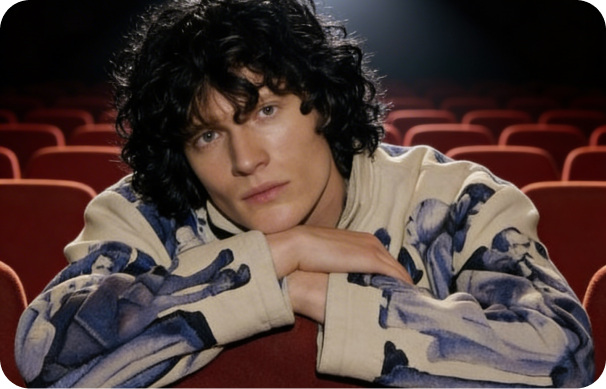
Inside DaVinci, create cinematic ads, product videos, and social assets with native audio, fluid motion, and consistent brand presentation.
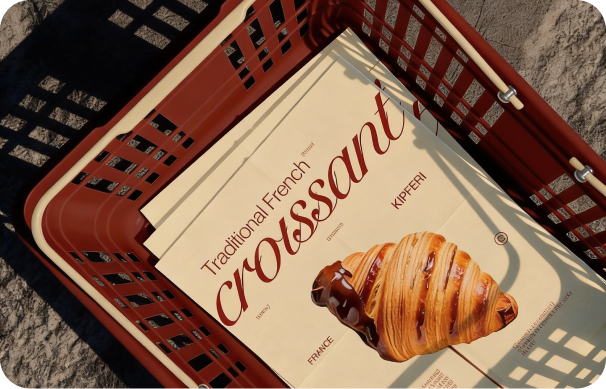
In DaVinci, leverage Kling 2.6 for previsualization, storyboards, trailers, and narrative scenes featuring realistic motion, synced sound, and expressive characters.
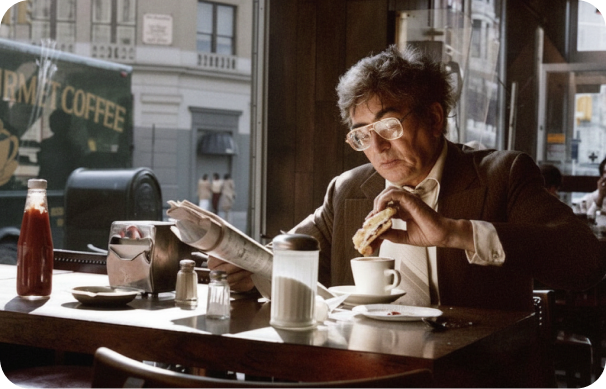
Inside DaVinci, generate high-quality, attention-grabbing videos for TikTok, Instagram, and other platforms, complete with built-in audio and cinematic visuals ready to publish.
Inside DaVinci, create cinematic ads, product videos, and social assets with native audio, fluid motion, and consistent brand presentation.
In DaVinci, leverage Kling 2.6 for previsualization, storyboards, trailers, and narrative scenes featuring realistic motion, synced sound, and expressive characters.
Inside DaVinci, generate high-quality, attention-grabbing videos for TikTok, Instagram, and other platforms, complete with built-in audio and cinematic visuals ready to publish.
Enter a text prompt and instantly create a cinematic video with Kling 2.6 in just seconds in DaVinci.
Inside DaVinci, Kling 2.6 combines fast generation, advanced motion control, and native audio, making it ideal for creators worldwide who need flexible, high-speed video production.
In DaVinci, produce synchronized dialogue, ambient layers, and sound effects directly with your visuals, adding richness and depth to every scene.
Inside DaVinci, achieve smooth, realistic movement with accurate camera behavior, enabling professional, production-style shots from simple text prompts.
In DaVinci, the model understands complex direction and emotional signals, generating characters that move, react, and perform with natural expression and intent.
Inside DaVinci, maintain consistent characters, tone, and motion across shots and scenes, making it well-suited for storytelling, branding, and multi-scene video projects.
In DaVinci, produce synchronized dialogue, ambient layers, and sound effects directly with your visuals, adding richness and depth to every scene.
Inside DaVinci, achieve smooth, realistic movement with accurate camera behavior, enabling professional, production-style shots from simple text prompts.
In DaVinci, the model understands complex direction and emotional signals, generating characters that move, react, and perform with natural expression and intent.
Inside DaVinci, maintain consistent characters, tone, and motion across shots and scenes, making it well-suited for storytelling, branding, and multi-scene video projects.