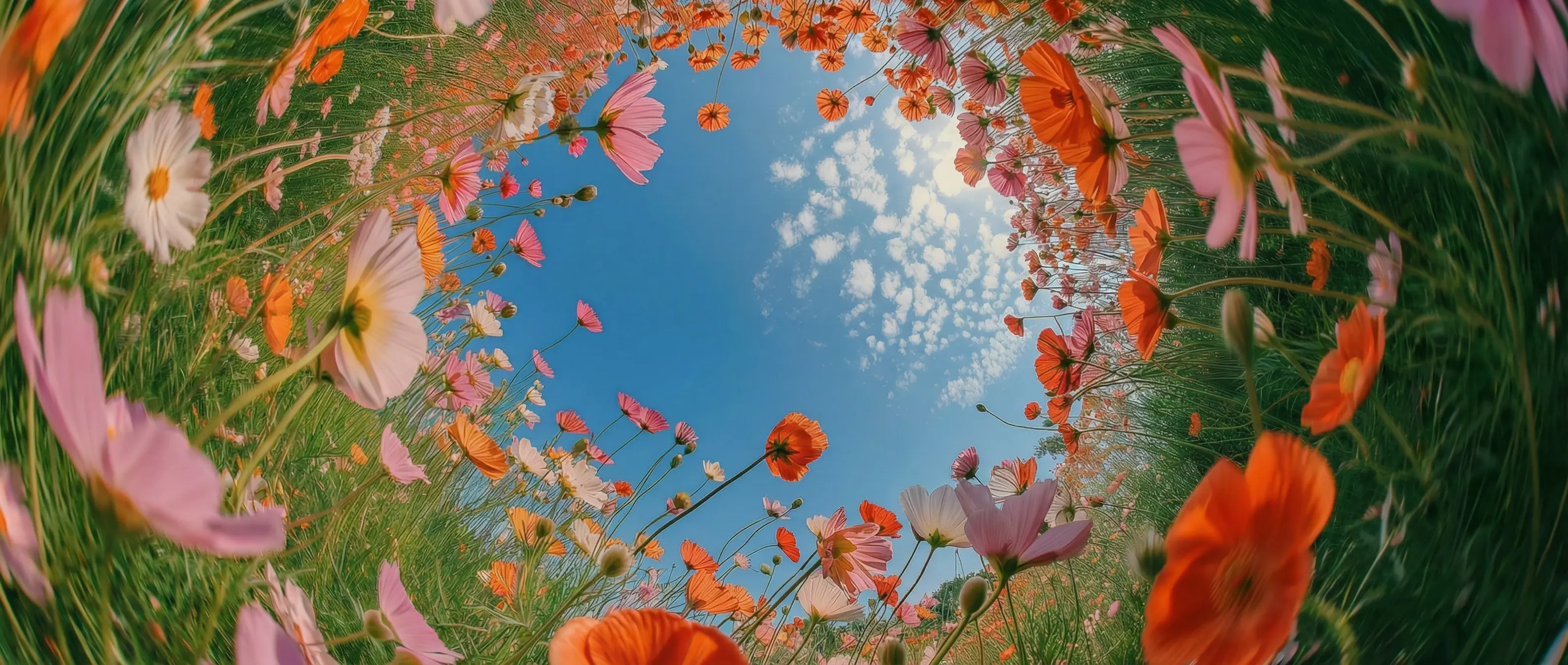
Prompt the way you think in DaVinci
Describe what you want in natural, everyday language in DaVinci. The model understands your intent, generates the visual, and aligns with your vision.
DaVinci Ultra, an image model by Google, is one of many available in DaVinci, a platform bringing together models from different AI providers. Generate from uploads or text prompts with fast, expressive output and accurate text rendering.
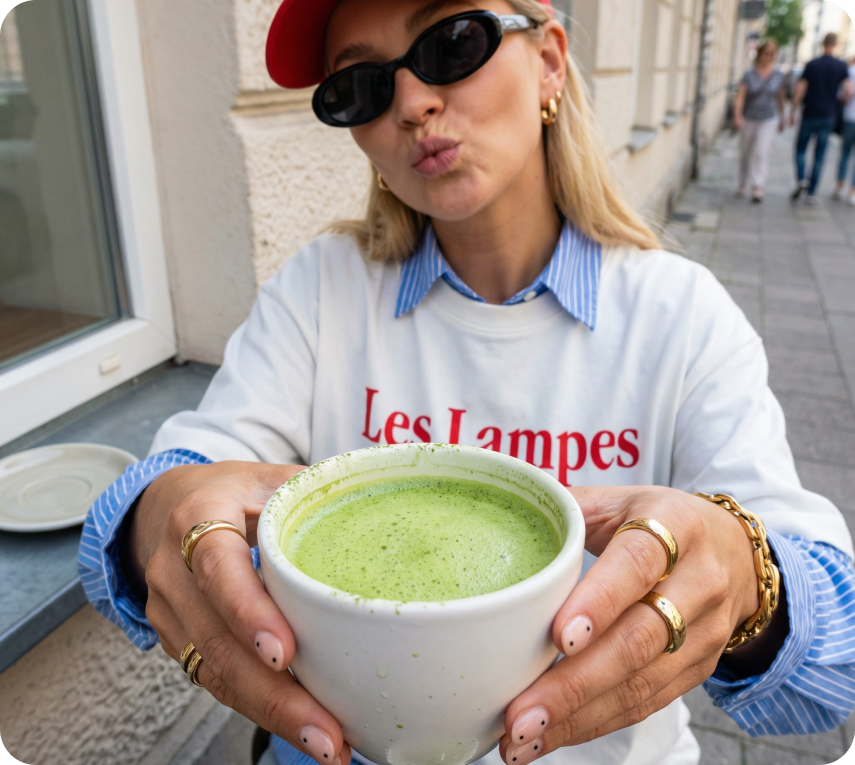
Describe what you want in natural, everyday language in DaVinci. The model understands your intent, generates the visual, and aligns with your vision.
Combine multiple elements into a single cohesive image while keeping lighting, shadows, and proportions realistic inside DaVinci.
In DaVinci, use the same subject across different scenes or show products from multiple angles, with every detail preserved for cohesive visuals.
Edit specific areas without affecting the entire scene in DaVinci. Remove elements, replace objects, adjust lighting, or refine small details exactly as needed.
DaVinci Ultra by Google is fast and intuitive, and you can access it directly inside the DaVinci AI Toolkit.
DaVinci Ultra is for creators, agencies, filmmakers, and professionals.
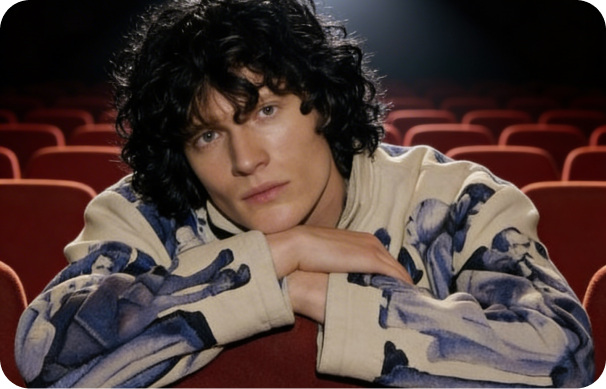
Inside DaVinci, quickly create thumbnails and social visuals with consistent characters and clean, professional-looking results every time.
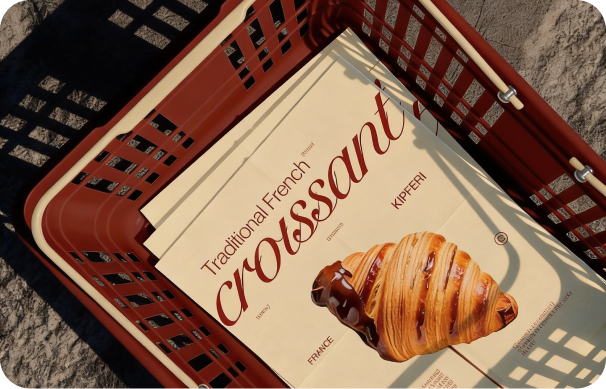
Create high-quality, on-brand campaign visuals in 4K, ideal for design assets, product imagery, and advertising inside DaVinci.
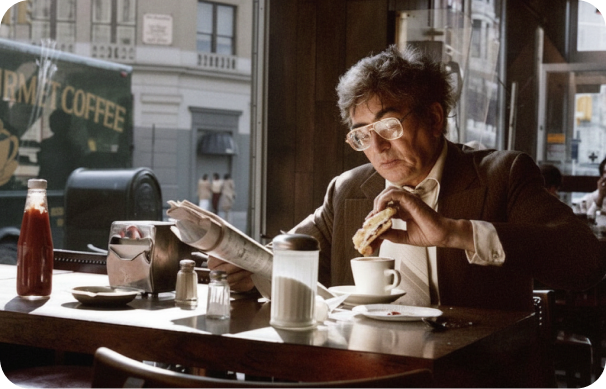
Inside DaVinci, build concept frames, storyboards, and mood boards while experimenting with scene variations, lighting styles, and cinematic camera angles.
Inside DaVinci, quickly create thumbnails and social visuals with consistent characters and clean, professional-looking results every time.
Create high-quality, on-brand campaign visuals in 4K, ideal for design assets, product imagery, and advertising inside DaVinci.
Inside DaVinci, build concept frames, storyboards, and mood boards while experimenting with scene variations, lighting styles, and cinematic camera angles.
Write a prompt or upload references, and DaVinci Ultra brings your creative vision to life in seconds.
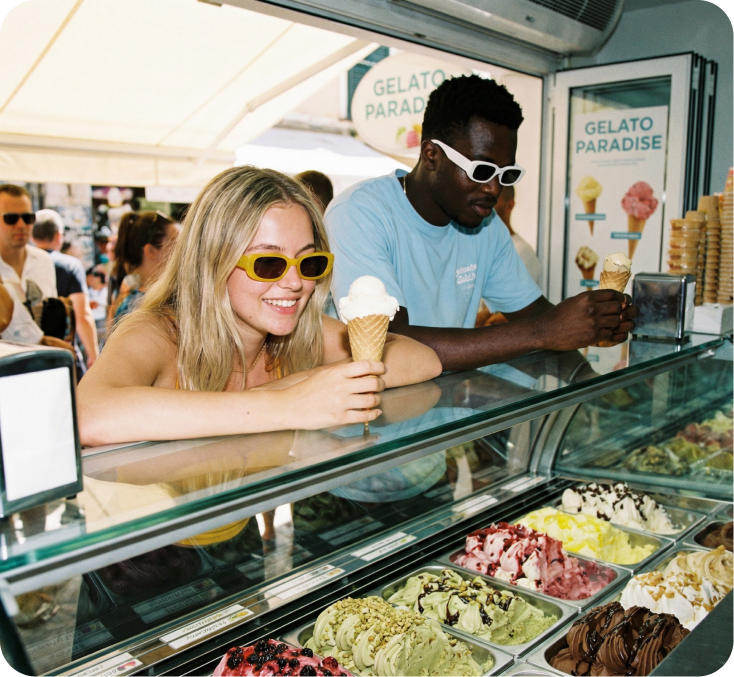
Here’s how DaVinci Ultra can save you hours of editing time.
In DaVinci, create images in seconds with high-performance rendering, making it easy to explore ideas, iterate fast, and accelerate your creative workflow.
Swap elements in your image such as clothing, accessories, or fine details using simple prompts in DaVinci. The model refreshes the visual while preserving the subject’s identity and structure.
Maintain a consistent visual style across edits. DaVinci Ultra updates only what you request, avoiding unwanted changes as you refine or test new creative directions.
Transform the look and mood of a scene without changing the subject through DaVinci. Adjust the setting, environment, or overall tone while keeping key details intact.
In DaVinci, create images in seconds with high-performance rendering, making it easy to explore ideas, iterate fast, and accelerate your creative workflow.
Swap elements in your image such as clothing, accessories, or fine details using simple prompts in DaVinci. The model refreshes the visual while preserving the subject’s identity and structure.
Maintain a consistent visual style across edits. DaVinci Ultra updates only what you request, avoiding unwanted changes as you refine or test new creative directions.
Transform the look and mood of a scene without changing the subject through DaVinci. Adjust the setting, environment, or overall tone while keeping key details intact.