Seedance 2.0 on DaVinci

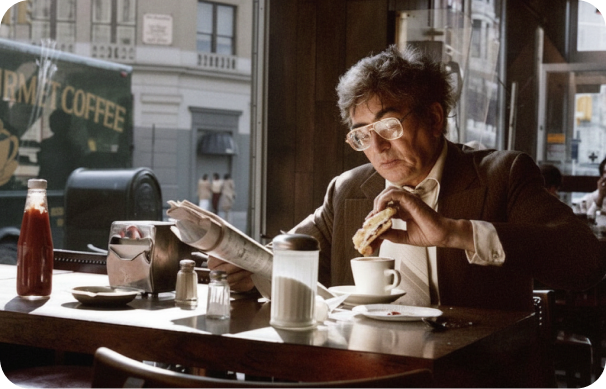
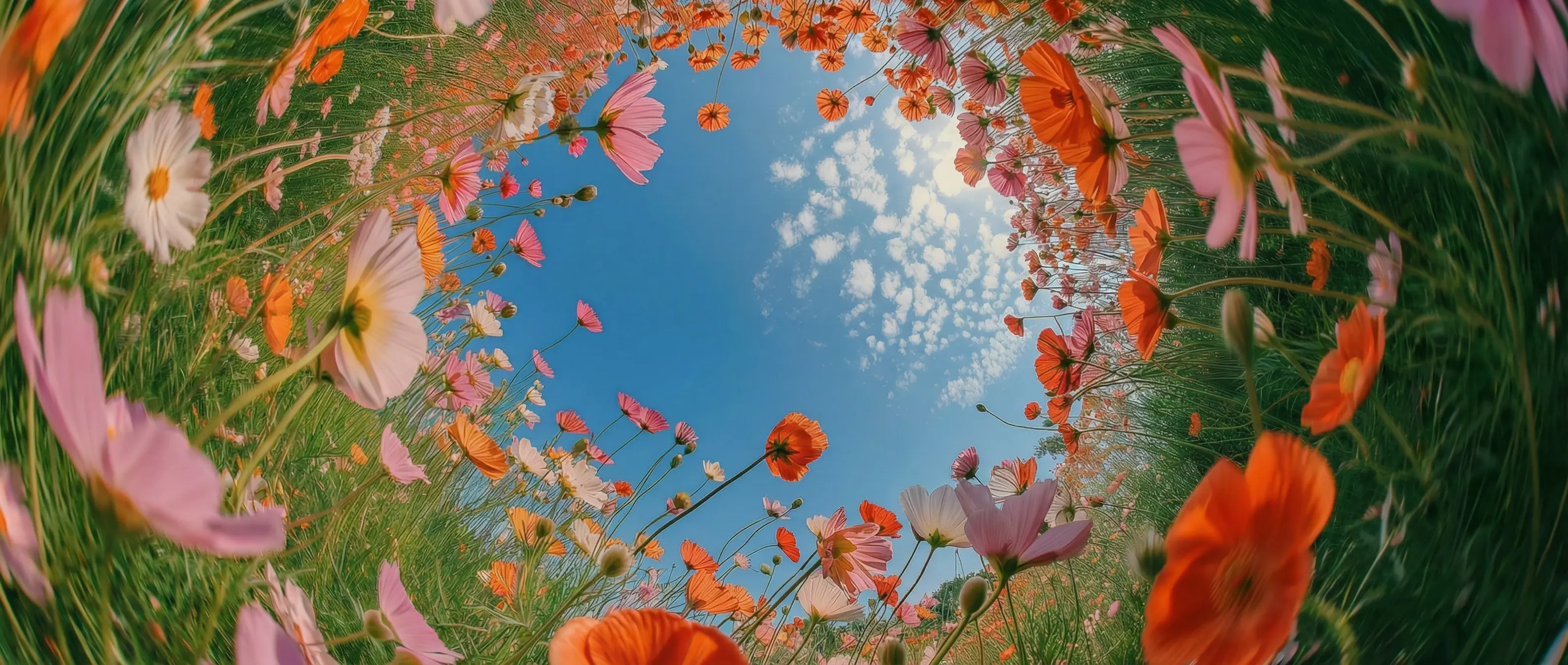
DaVinci brings together video models from different AI providers — ByteDance's Seedance 2.0 among them. Create cinematic sequences from text, images, clips, and audio, with synchronized sound in one workflow.

Try Seedance 2.0

Why creators choose Seedance 2.0 in DaVinci

Start Creating

Advanced multimodal control in DaVinci

Guide AI generation using text prompts together with reference images, video samples, and audio in DaVinci. A structured tagging system lets you define opening frames, camera movement, and music cues with precision.
Seamless cinematic motion in DaVinci

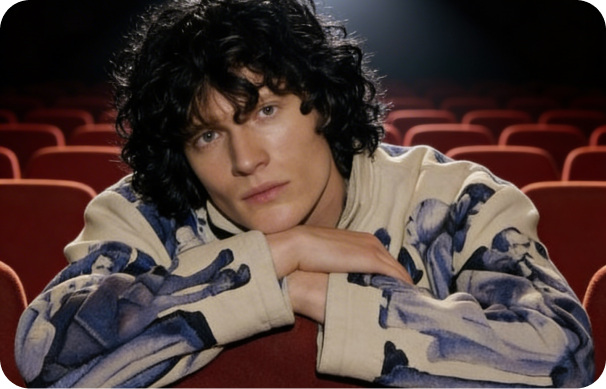
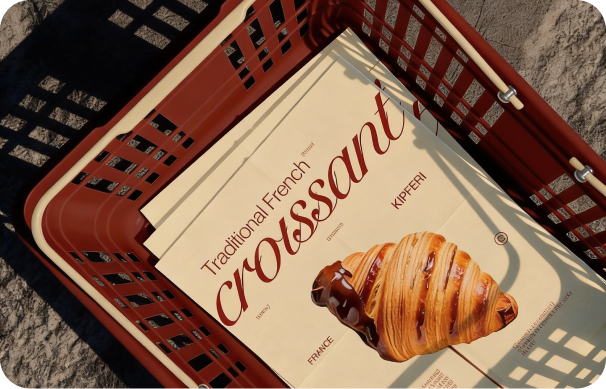
Inside DaVinci, create fluid tracking shots, smooth scene transitions, and multi-shot sequences while keeping characters and environments consistent. Maintain the continuity required for professional-grade visuals.

Auto-synced audio creation in DaVinci

Generate sound effects and background music that automatically match the timing and rhythm of your visuals through DaVinci. Achieve clean, production-ready results without additional audio editing.

Flexible, structured video refinement in DaVinci

Edit and extend existing footage with exact control in DaVinci. Swap characters, insert or remove scenes, and continue generation from the last frame for maximum creative freedom.

How to create with Seedance 2.0 in DaVinci

Seedance 2.0 by ByteDance AI is fast and intuitive, available directly inside the DaVinci AI Toolkit.

Start Creating

Who Seedance 2.0 is built for in DaVinci

In DaVinci, ByteDance Seedance 2.0 is designed for creators who need structured control, cinematic flow, and reliable consistency across video projects.

Try Seedance 2.0
DaVinci for content creators and marketers

DaVinci for content creators and marketers

Inside DaVinci, produce on-brand video content with tight visual consistency and synchronized audio for social platforms, advertising, and product showcases.

DaVinci for filmmakers and video editors

DaVinci for filmmakers and video editors

In DaVinci, develop cinematic previsualizations, multi-shot sequences, and concept scenes with consistent characters, camera movement, and sound design.

DaVinci for design and animation teams

DaVinci for design and animation teams

Inside DaVinci, experiment with complex motion, generate reference clips for storyboards, and explore visual styles before moving into full-scale production.

Seedance 2.0 now available on DaVinci

In DaVinci, explore the Seedance 2.0 video generator and bring images, video clips, and audio together to create multimodal content aligned with your creative vision.

Start Creating

Seedance 2.0 AI capabilities in DaVinci

Explore the core features that give you director-level control over multimodal video creation inside DaVinci.

Start Creating

Universal @-tag reference system in DaVinci

Guide creative direction with structured @Image, @Video, and @Audio references through DaVinci. Assign key frames, camera movement, or music cues directly in your prompt for precise orchestration and style control.

Multimodal generation modes in DaVinci

Create across text-to-video, image-to-video, video-to-video, and audio-to-video workflows in DaVinci. Build scenes from scratch, refine existing footage, or generate full sequences with flexibility.

Seamless scene extensions in DaVinci

Extend scenes naturally while preserving characters, environments, and motion flow inside DaVinci. Generate longer sequences with consistent pacing and cinematic continuity.

Audio-visual synchronization in DaVinci

Inside DaVinci, automatically generate sound effects and music that align with on-screen action and timing, keeping audio and visuals in sync within a single generation.

Frequently Asked Questions

DaVinci’s Video composer has a text prompt, Start Image, End Image, and Add References controls. With Seedance 2 selected, add the source that defines the opening frame or subject and describe the movement. Check the preview before generating.

Write the subject action and camera move as separate instructions for Seedance 2. For example: “The cyclist pedals forward; the camera tracks beside them at a steady distance.” Keep the action short and avoid conflicting moves such as “locked camera” and “orbit around the subject” in the same prompt.

Yes. DaVinci’s Seedance 2 listing marks audio output. Include dialogue, music, or sound effects in the prompt, then listen to the full clip for timing and unwanted sounds.

Yes. Make a new Seedance 2 version with a specific revision, such as “keep the opening frame and subject, but slow the camera push-in.” Reuse the same source image or clip when applicable, then compare both results for unintended changes.

In DaVinci’s Video workspace, select Seedance 2, enter the subject, action, setting, and camera move, then set duration and aspect ratio. Add a Start Image for an image-led clip; review the credit cost before generating.

Give Seedance 2 one clear shot: subject, action, setting, camera move, and light. Example: “A ceramic cup sits beside an open window; steam rises while the camera slowly pushes in. Soft room ambience, no dialogue.” Add dialogue or sound only when needed, then revise one instruction after reviewing the result.

Before generating with Seedance 2, check the prompt’s subject and action, any Start Image or End Image, framing, aspect ratio, duration, resolution, and displayed credit cost. Add audio direction only when you want sound. These checks happen before the clip is made.

In DaVinci’s Video workspace, add the photo as the Start Image and describe the movement you want—for example, “slow push-in; the subject turns toward camera.” Select Seedance 2, review the image preview and settings, then generate and check that the subject stays recognizable.

DaVinci shows 4–15 seconds duration, 480p–4K resolution, audio output. Choose the aspect ratio in Video settings, review the credit cost, and set the duration and resolution before generating.

Play the entire Seedance 2 clip once at normal speed and once with attention to transitions. Check motion continuity, subject identity, framing, text, and visible artifacts. If the model includes audio, listen for timing and pronunciation before exporting.

Design with DaVinci

Create with momentum. Bring your vision to life.

Sign Up