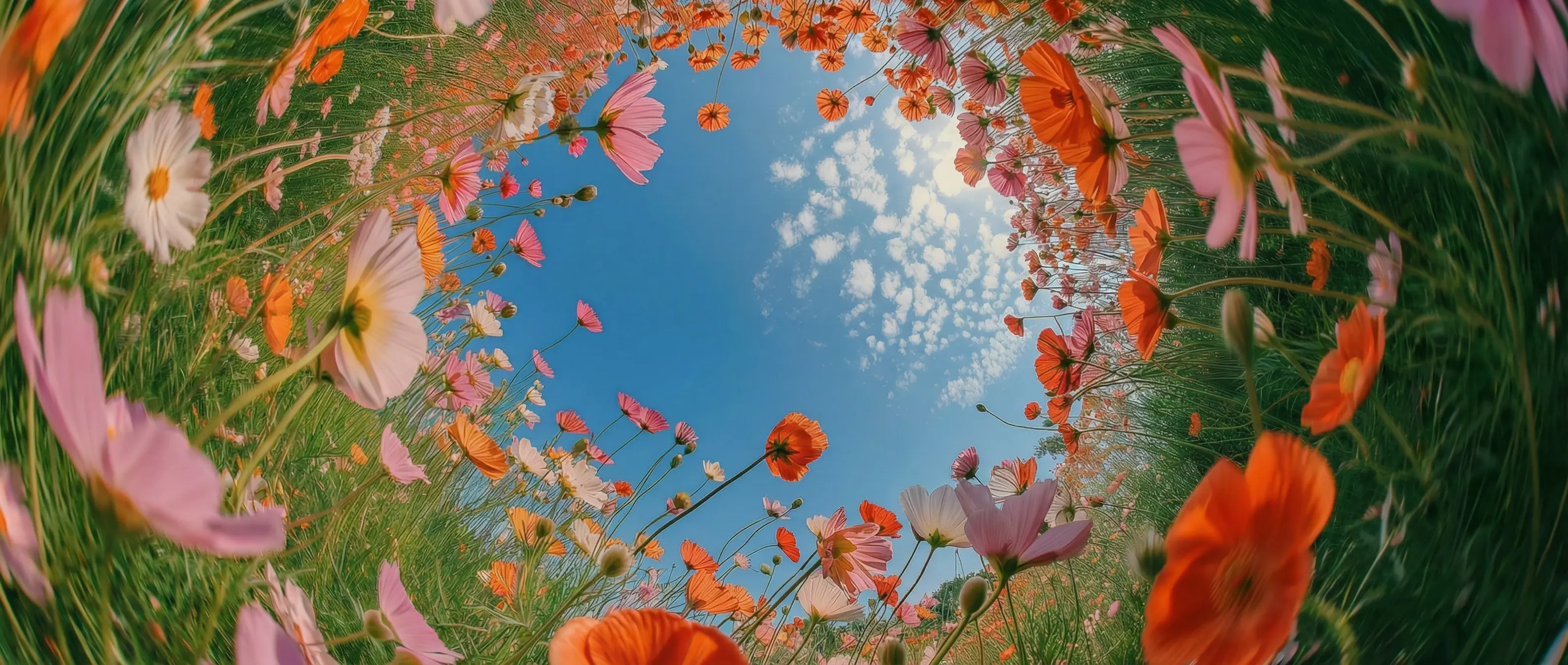
True-to-life physics in DaVinci
In DaVinci, built on real-world physics, Sora 2 produces videos with natural motion, realistic gestures, and lifelike expressions, making it ideal for action-driven scenes and user-generated content.
In DaVinci, built on real-world physics, Sora 2 produces videos with natural motion, realistic gestures, and lifelike expressions, making it ideal for action-driven scenes and user-generated content.
Guide the model using filmmaking language, as if working with a camera crew inside DaVinci. Create multi-shot sequences while maintaining consistent characters, environments, and visual style.
In DaVinci, enhance your videos with integrated sound effects, ambient audio, and dialogue, all automatically synchronized with visuals for an immersive, production-quality result.
Fine-tune every detail with prompt-level control over camera movement, framing, pacing, and mood in DaVinci. Iterate quickly, adjust scenes with intention, and shape the final output exactly to your creative vision without breaking visual consistency.
Start creating with OpenAI Sora 2 by following a few simple steps directly inside the DaVinci AI Toolkit.
In DaVinci, Sora 2 by OpenAI supports creators across industries who need realistic, high-impact video content with minimal production friction.
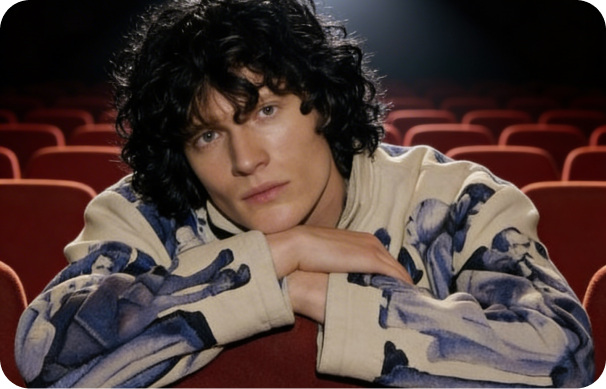
Inside DaVinci, produce realistic short-form videos, reels, and narrative content with lifelike motion, consistent characters, and immersive sound—without complex production workflows.
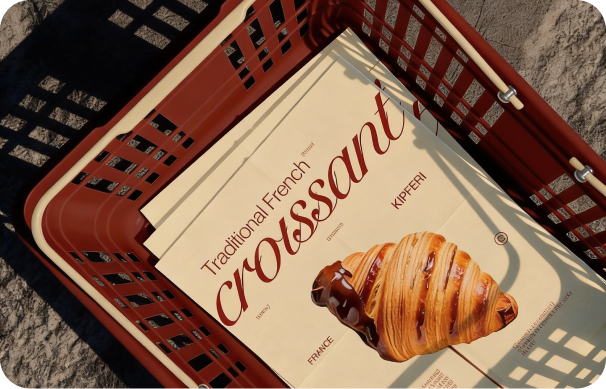
Rapidly create professional-quality video concepts, ads, and campaign visuals inside DaVinci. Enable teams to test ideas faster while cutting production time and costs.
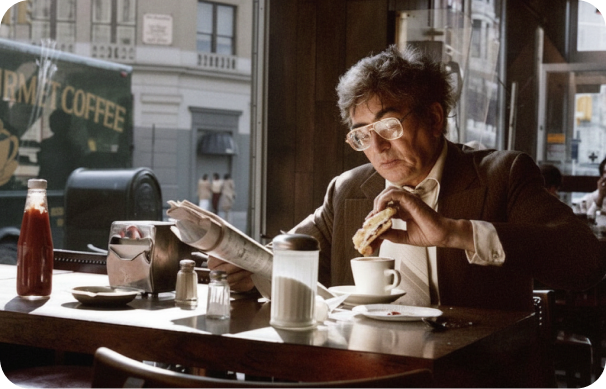
Prototype scenes, explore story concepts, and experiment with AI-generated visuals through DaVinci. Direct the model like a filmmaker to achieve physically accurate motion and consistent multi-shot sequences.
Inside DaVinci, produce realistic short-form videos, reels, and narrative content with lifelike motion, consistent characters, and immersive sound—without complex production workflows.
Rapidly create professional-quality video concepts, ads, and campaign visuals inside DaVinci. Enable teams to test ideas faster while cutting production time and costs.
Prototype scenes, explore story concepts, and experiment with AI-generated visuals through DaVinci. Direct the model like a filmmaker to achieve physically accurate motion and consistent multi-shot sequences.
Enter a text prompt or upload an image, and generate a realistic, lifelike video with Sora 2 in just seconds in DaVinci.
Inside DaVinci, Sora 2 AI brings together lifelike motion, cinematic control, and synchronized audio to produce high-end videos from images or simple prompts.
In DaVinci, Sora 2 supports video creation from text prompts or still images, using images as visual references for style, composition, and framing.
Inside DaVinci, dialogue, sound effects, and background music are automatically aligned with visual timing and on-screen actions, including accurate lip-sync for generated speech.
In DaVinci, the model simulates real-world physical behavior such as gravity, momentum, and collisions, ensuring motion and object interactions feel natural and consistent throughout each scene.
Inside DaVinci, Sora 2 maintains character, object, and scene continuity across multiple shots, enabling smoother, more cohesive video sequences.
In DaVinci, Sora 2 supports video creation from text prompts or still images, using images as visual references for style, composition, and framing.
Inside DaVinci, dialogue, sound effects, and background music are automatically aligned with visual timing and on-screen actions, including accurate lip-sync for generated speech.
In DaVinci, the model simulates real-world physical behavior such as gravity, momentum, and collisions, ensuring motion and object interactions feel natural and consistent throughout each scene.
Inside DaVinci, Sora 2 maintains character, object, and scene continuity across multiple shots, enabling smoother, more cohesive video sequences.