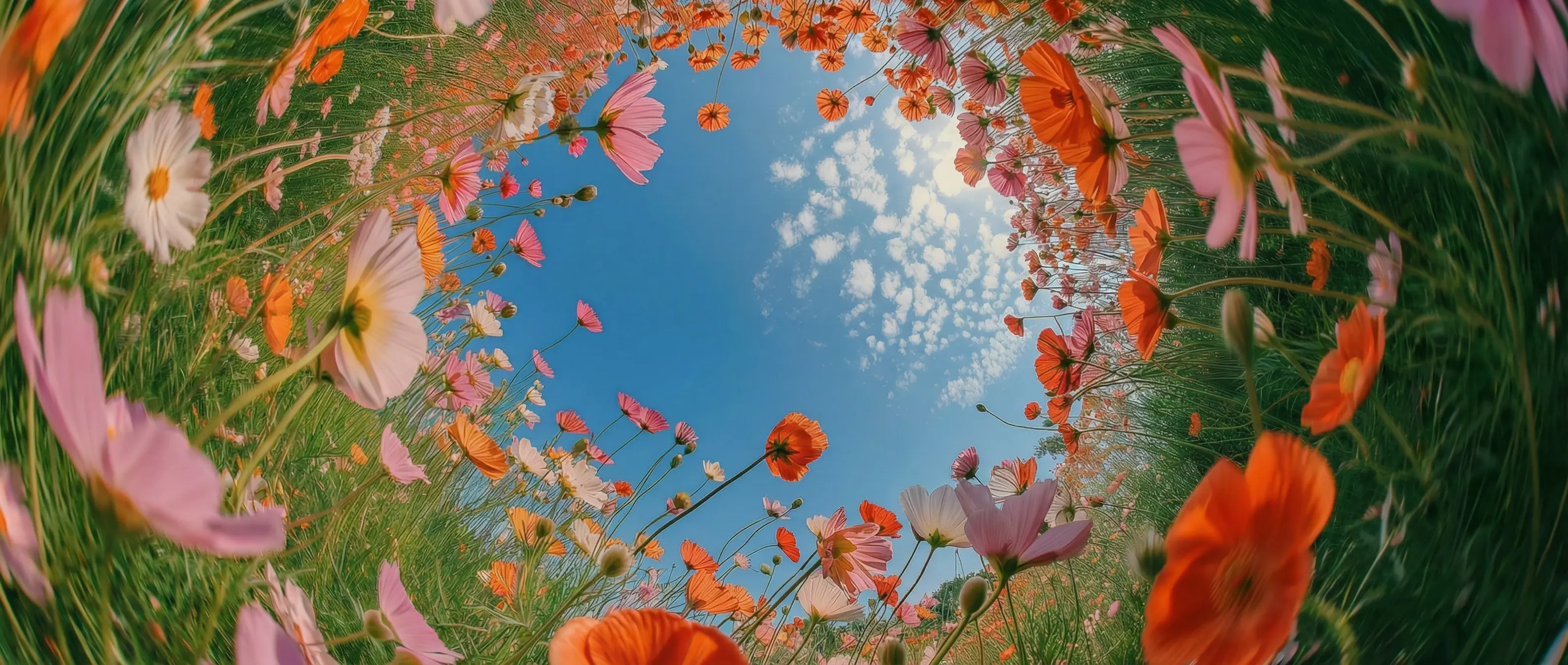
From still to motion in seconds in DaVinci
Skip the camera, the crew, and the timeline in DaVinci. Describe a scene or drop in an image, and Grok Imagine brings it to life as smooth, ready-to-share motion in moments.
Grok Imagine, a video model by xAI, is one of many available in DaVinci, a platform bringing together models from different AI providers. Turn a single image or a few words into cinematic footage with fluid, believable motion.
Skip the camera, the crew, and the timeline in DaVinci. Describe a scene or drop in an image, and Grok Imagine brings it to life as smooth, ready-to-share motion in moments.
The model animates with natural movement and believable physics, so subjects and camera moves feel real inside DaVinci. No jitter, no morphing, just clips that hold up frame after frame.
Vertical for Reels and Shorts, widescreen for film, square for feeds through DaVinci. Grok Imagine adapts to 1:1, 16:9, 9:16, and more without cropping or losing your framing.
Upload up to three references and watch a still become a moving shot in DaVinci. Animate a product, a character, or a place, and explore directions from a single frame.
Create videos with Grok Imagine directly inside the DaVinci AI Toolkit, turning simple text prompts or a single image into finished, cinematic motion in moments.
Grok Imagine is for creators, agencies, filmmakers, and professionals through DaVinci.
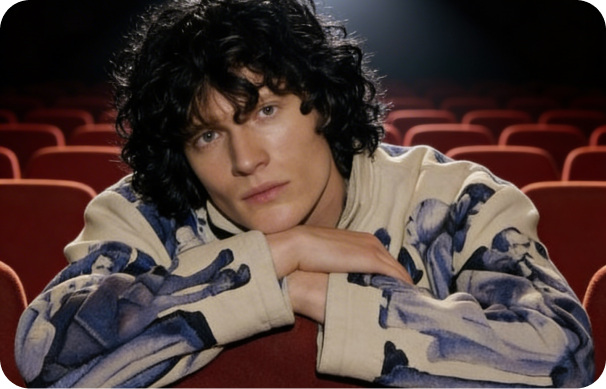
Inside DaVinci, make scroll-stopping intros, B-roll, and short-form clips without filming, with characters that stay consistent take after take.
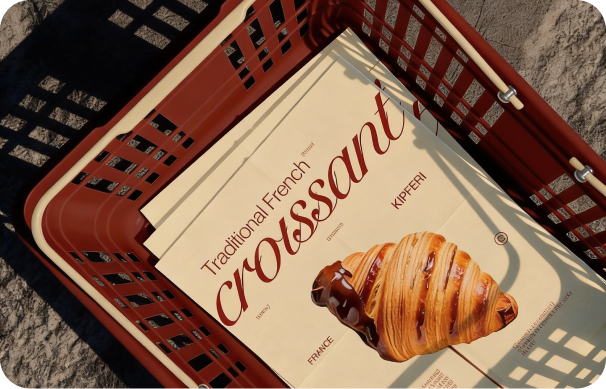
Turn product shots into motion and ship on-brand video ads in 4K, with no shoot, no production budget, and no waiting inside DaVinci.
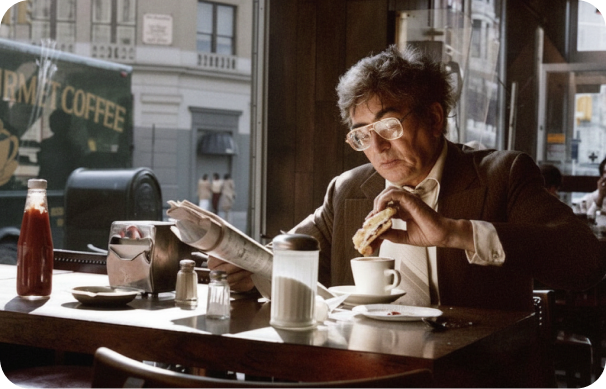
Inside DaVinci, previsualize scenes, build animatics, and test camera angles, lighting, and pacing before a single frame is ever shot on set.
Inside DaVinci, make scroll-stopping intros, B-roll, and short-form clips without filming, with characters that stay consistent take after take.
Turn product shots into motion and ship on-brand video ads in 4K, with no shoot, no production budget, and no waiting inside DaVinci.
Inside DaVinci, previsualize scenes, build animatics, and test camera angles, lighting, and pacing before a single frame is ever shot on set.
Write a prompt or upload references, and Grok Imagine brings your creative vision to life in seconds in DaVinci.
Here’s how Grok Imagine can save you hours of editing time inside DaVinci.
In DaVinci, get finished clips in seconds with fast model performance, so you can explore shots, test ideas, and move from concept to cut quickly.
Swap wardrobe, props, or small details with a simple prompt in DaVinci. The change carries cleanly through the motion while the subject's identity stays intact.
Hold one look across every frame inside DaVinci. Grok Imagine changes only what you ask for, preventing the flicker and drift that break consistency in generated video.
Reshape the setting and mood of a shot without touching your subject through DaVinci. Change the location, time of day, or tone while keeping the action consistent.
In DaVinci, get finished clips in seconds with fast model performance, so you can explore shots, test ideas, and move from concept to cut quickly.
Swap wardrobe, props, or small details with a simple prompt in DaVinci. The change carries cleanly through the motion while the subject's identity stays intact.
Hold one look across every frame inside DaVinci. Grok Imagine changes only what you ask for, preventing the flicker and drift that break consistency in generated video.
Reshape the setting and mood of a shot without touching your subject through DaVinci. Change the location, time of day, or tone while keeping the action consistent.