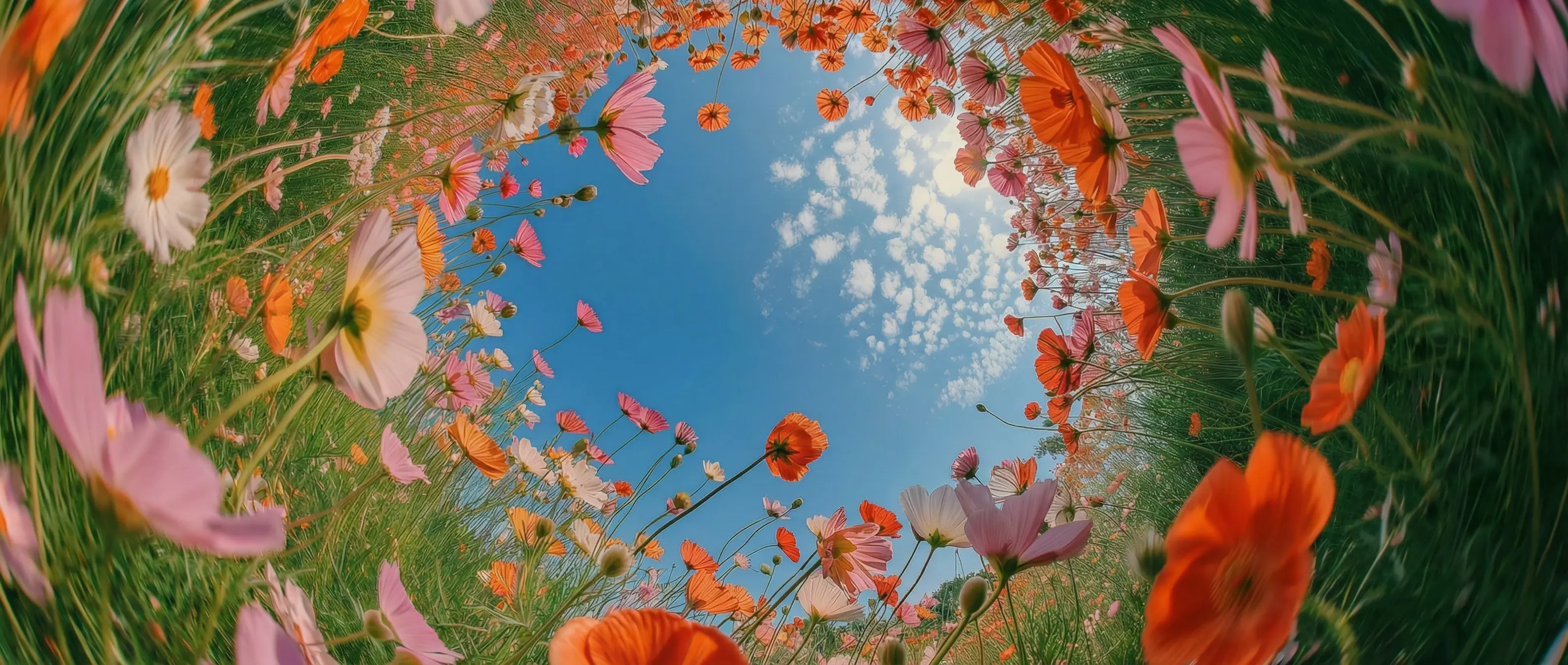
Direct scenes with cinematic prompts in DaVinci
In DaVinci, describe your vision as if you're directing a shot. Veo 3.1 interprets film language such as time-lapse, over-the-shoulder angles, dolly zooms, and more to shape each scene accurately.
DaVinci brings together video models from different AI providers — Google's Veo 3.1 among them. Turn text prompts or images into cinematic videos with natural motion, high clarity, and precisely aligned sound.
In DaVinci, describe your vision as if you're directing a shot. Veo 3.1 interprets film language such as time-lapse, over-the-shoulder angles, dolly zooms, and more to shape each scene accurately.
Take finer control of each sequence in DaVinci by setting how scenes begin and end. Create cleaner transitions and a polished, professional flow.
Generate fast concept videos in DaVinci for ads, music projects, and short films. Sketch storyboards, experiment with visual styles, and validate ideas in minutes instead of days.
Create immersive videos in DaVinci with built-in audio, including ambient sound, voices, and dialogue, automatically synchronized with the visuals.
Veo 3.1 by Google is fast and intuitive, and you can get it right inside the DaVinci AI Toolkit.
Veo 3.1 in DaVinci is for creators, agencies, filmmakers, and professionals.
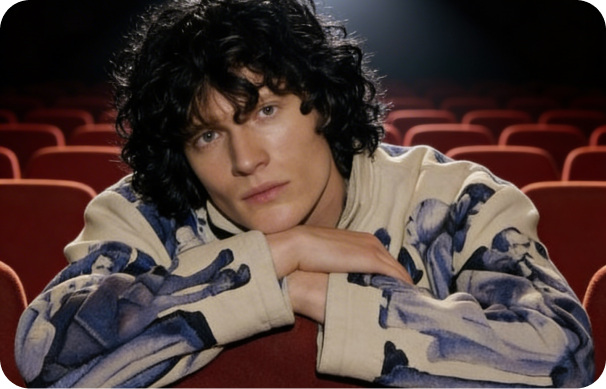
Create thumbnails and social art instantly in DaVinci, with characters that stay consistent and results that always look polished.
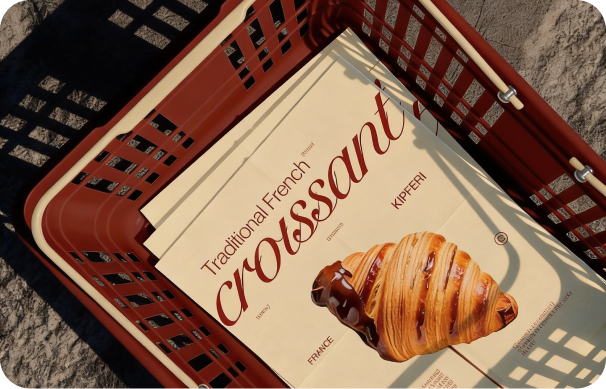
Produce clean, on-brand campaign visuals in 4K with DaVinci - perfect for design, product shots, and ads.
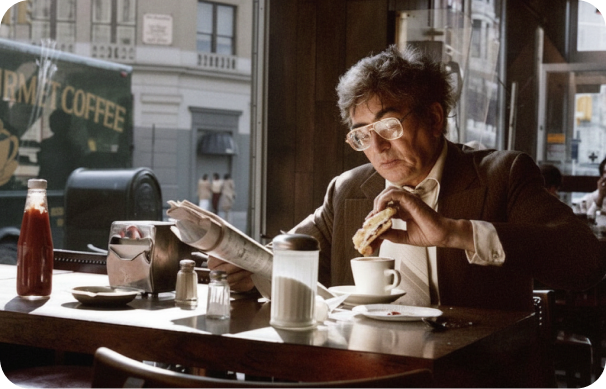
Generate concept frames, storyboards, and mood boards in DaVinci, and explore different scene variations, lighting setups, and cinematic camera angles.
Create thumbnails and social art instantly in DaVinci, with characters that stay consistent and results that always look polished.
Produce clean, on-brand campaign visuals in 4K with DaVinci - perfect for design, product shots, and ads.
Generate concept frames, storyboards, and mood boards in DaVinci, and explore different scene variations, lighting setups, and cinematic camera angles.
Write a prompt or upload references in DaVinci, and Veo 3.1 brings your creative vision to life in seconds.
Here's how Veo 3.1 in DaVinci can save you hours of editing time.
Create sound directly from your prompt in DaVinci, including ambience, dialogue, and music. Audio is automatically synced with the video, with no extra editing tools or plug-ins needed.
Describe each shot exactly as you envision it. In DaVinci, Veo 3.1 closely follows complex directions, handling cinematic terminology, camera movement, and scene details with high precision.
Generate videos in DaVinci with realistic movement driven by accurate physics, fluid behavior, lighting response, and object interaction. Every motion feels natural and grounded.
Produce sharp, detailed visuals with clean textures and smooth motion. Veo 3.1 in DaVinci creates footage suitable for large screens, professional use, and commercial-quality projects.
Create sound directly from your prompt in DaVinci, including ambience, dialogue, and music. Audio is automatically synced with the video, with no extra editing tools or plug-ins needed.
Describe each shot exactly as you envision it. In DaVinci, Veo 3.1 closely follows complex directions, handling cinematic terminology, camera movement, and scene details with high precision.
Generate videos in DaVinci with realistic movement driven by accurate physics, fluid behavior, lighting response, and object interaction. Every motion feels natural and grounded.
Produce sharp, detailed visuals with clean textures and smooth motion. Veo 3.1 in DaVinci creates footage suitable for large screens, professional use, and commercial-quality projects.